

The encoder's sources
The encoder mixes up to four sources at once: the board’s HDMI, USB capture cards and cameras, and a phone or a camera over the network.
What you can plug in
Section titled “What you can plug in”| Source | What you need to know |
|---|---|
| Board HDMI | Through the HDMI-to-CSI board. Up to 1080p50 or 720p60. Interlaced signals (1080i) aren’t supported: set the camera to progressive |
| USB capture card | Elgato Cam Link 4K (up to 1080p60), MS2130 or MS2109. If the camera sends 4K, set it to 1080p |
| USB camera | A webcam. Its image is adjusted from the encoder |
| Network camera | A phone with Moblin or Larix, or a camera with SRT or RTMP output. For now, one network camera at a time |
USB capture cards and cameras can be plugged in and unplugged while the encoder runs: the one you plug in shows up by itself in a free slot, and the one you unplug frees its slot after 3 seconds. If it was on air, it stays as DISCONNECTED until you put another source on. Plug it back in and it gets its slot and its settings back.
No camera? Pick Test pattern as the main source in Settings › Sources › Input: a test picture and tone.
The four slots
Section titled “The four slots”The mixer has four slots, Source 1 to Source 4. You can have more cameras connected than slots: the extra ones wait, connected, until a slot frees up.
Each slot is set in Settings › Sources › Slots (on the web page, the Source slots card):
- Automatic: takes the next source that’s connected, starting with the HDMI. This is the default.
- Off (on the web page, None): never takes a source.
- A specific camera: the slot is kept for it (Always in this source) and stays black while it’s unplugged.
Each slot takes an alias of up to 24 characters, the name you see on the screen and on the web page (the screen’s keyboard has no accents: type those on the web page). Press Save to apply. Hide takes a source out of the mixer at once, except the one on air.
A USB camera’s image
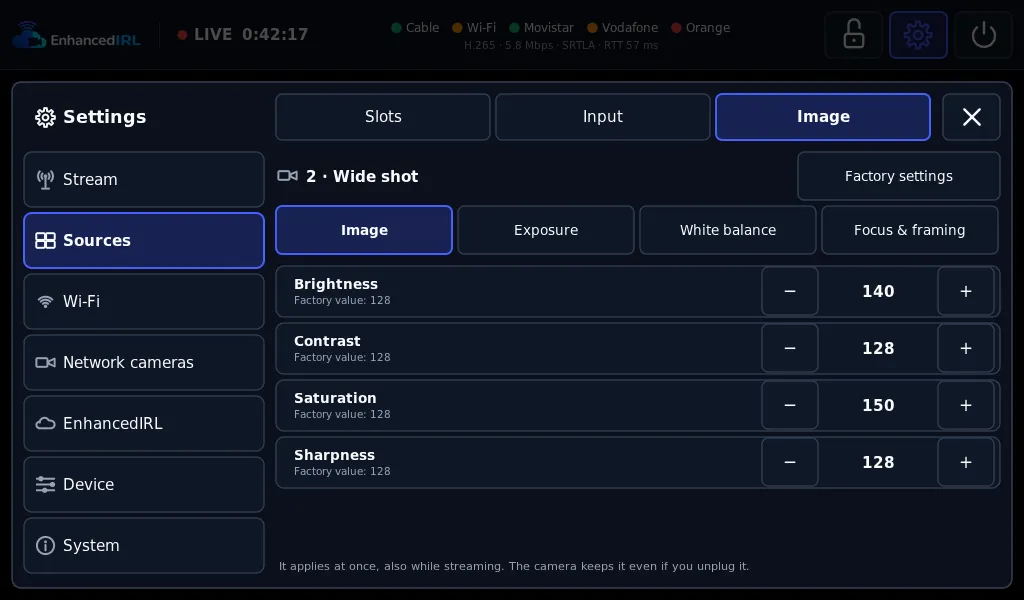
Section titled “A USB camera’s image”USB cameras that allow it are adjusted in Settings › Sources › Image (on the web page, Camera image), in four groups: Image, Exposure, White balance and Focus & framing. Each setting shows its factory value. They apply at once, also while you’re live, and the camera keeps them even if you unplug it. Factory settings puts everything back as it came.
The board’s HDMI and network cameras don’t have these settings: adjust them on the camera or the phone.
Adding your phone as a camera
Section titled “Adding your phone as a camera”You need: a phone with Moblin or Larix (or a camera with SRT or RTMP output) · 5 minutes
- On the screen, open Settings › Wireless › Wi-Fi and turn on Create my Wi-Fi: it’s the encoder’s own Wi-Fi. The encoder’s connections explains it.
- Open Settings › Network cameras. Turn on the Network cameras row (below it, it will say Reception on) and the Over the encoder’s Wi-Fi row.
- Press Add camera and give it a name.
- Touch the camera. Behind the eye are its SRT URL, its RTMP URL and a QR code with the SRT URL. On the web page, the Network cameras card has a How to connect button: copying them from there is easier.
- Join your phone to the encoder’s Wi-Fi with the QR code in Settings › Wireless › Wi-Fi.
- In Moblin or Larix, paste the SRT URL and set the SRT latency to 500 ms: Moblin’s default is much higher, and its picture would reach you seconds late. Use RTMP only if you don’t have SRT.
- Start streaming from the phone. The camera goes from Waiting for the camera to Connected and takes a free slot in the mixer.
By cable? Turn on By cable instead of the Wi-Fi: the camera, on the same network as the encoder, uses the URL shown for that mode. If the router gives the encoder another IP, the URL changes: reserve the IP in the router.
Next step
Section titled “Next step”- The mixer: putting sources on air, and the audio.
- If a source won’t come in: Problems with the encoder.