

The web control panel
Everything you need during a stream fits in one browser tab: scenes, the live button, audio and the numbers that matter.
Where it is
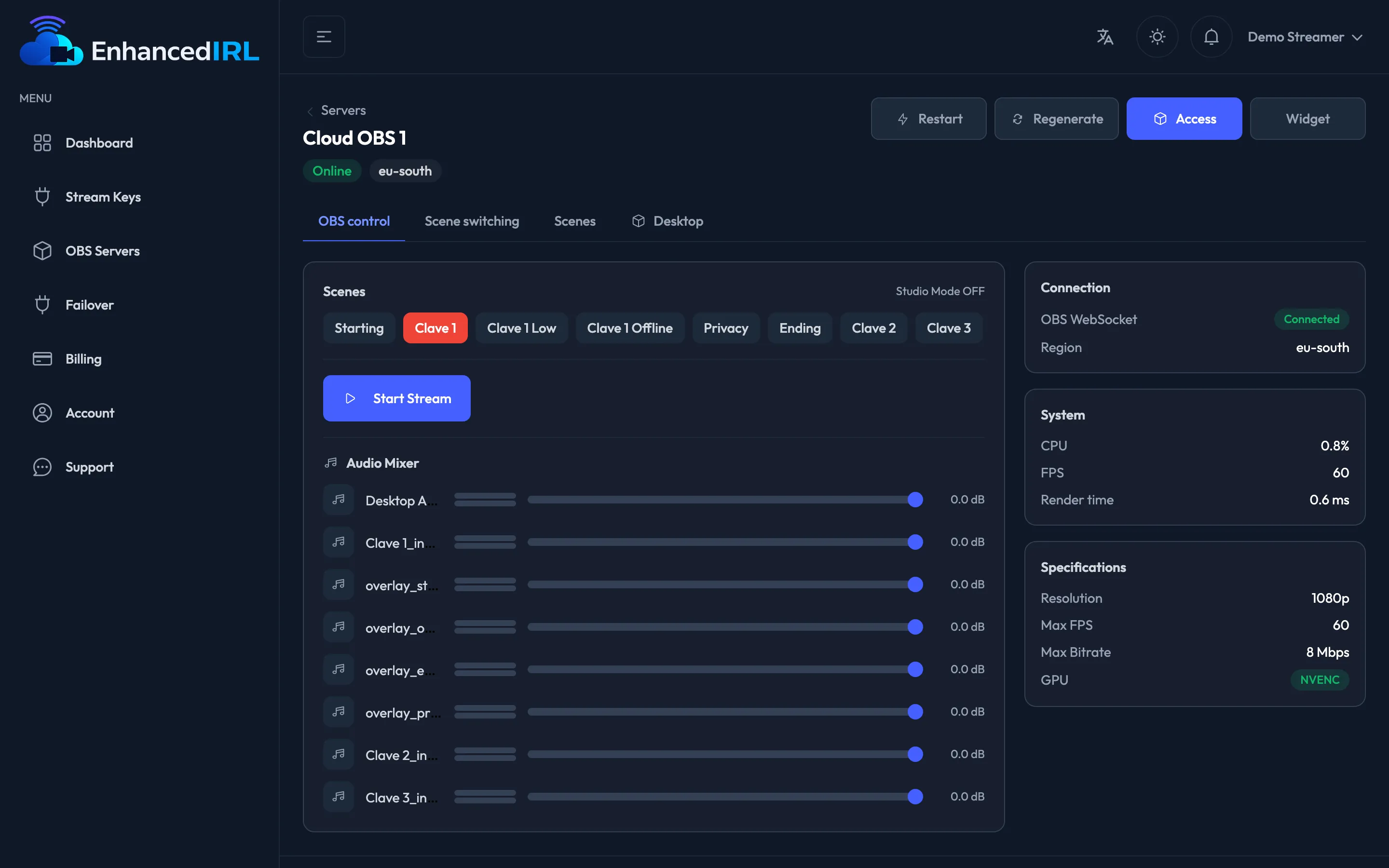
Section titled “Where it is”Side menu → OBS Servers → click on your server → OBS control tab. It’s the tab that opens by default.
The server has to be Online. If it’s Stopped, hit Turn on and wait a few minutes (It turns off on its own).
While you have this page open and in view, the server doesn’t turn off on its own. See It turns off on its own for exactly what counts as use.
Scenes
Section titled “Scenes”Each scene is a button with its name. The one on air is marked in red; hit another one and you switch instantly.
Top right of the block you have Studio Mode OFF. Turn it on and it goes to Studio Mode ON: then you get Preview (what you’re setting up) and Program (what your audience sees), plus a Transition button to move from one to the other. Without studio mode, the switch is immediate.
Going live and coming off
Section titled “Going live and coming off”The big button is Start stream. It asks you to confirm: “Your Cloud OBS will start broadcasting to the configured output.” That output is the channel you picked for it in the Output card of this same tab (Going out to your platform).
While you’re broadcasting, the button turns into Stop stream and the confirmation warns you that the broadcast ends immediately. The server badge changes to Live.
At the bottom there’s the Audio Mixer: one slider per audio source, with its mute button and the level in decibels. If the server hasn’t connected yet you’ll see “No audio sources”: wait a few seconds and reload.
Live stats
Section titled “Live stats”While you’re broadcasting, the right-hand column fills up:
| Card | What it tells you |
|---|---|
| Connection | Whether the dashboard is talking to your server, and your region. If it drops, you get Reconnect |
| Live | Duration of the stream, current Bitrate and Drops (lost frames) |
| System | CPU, real FPS and render time |
| Specifications | Resolution, max FPS, max bitrate and the GPU your plan includes |
The two numbers to watch out on the street:
- Bitrate: if it drops and doesn’t recover, it’s your connection, not the server. See Unstable bitrate.
- Drops: any figure that keeps climbing means frames are being lost on the way to your platform.
On OBS Basic it’s your only control
Section titled “On OBS Basic it’s your only control”On OBS Basic there’s no Desktop tab: you do everything from here, plus the overlays on the Scenes tab, including your own on top of the camera. It’s enough to stream every day, but you can’t add new sources or touch the OBS interface.
If you need that, there are OBS Standard and OBS Pro.
Controlling without signing in
Section titled “Controlling without signing in”The Widget button in the detail copies a link that opens this same panel with no password, for a moderator. It gives full control, so read the control widget and Link security first.
Next step
Section titled “Next step”- Scenes and overlays — what’s behind each scene button.
- Automatic scene switching — so it switches on its own when the bitrate drops.