

Control your OBS with the dock (old method)
With your OBS already paired, the Control tab is the remote: what you tap on your phone happens in the OBS at your house instantly.
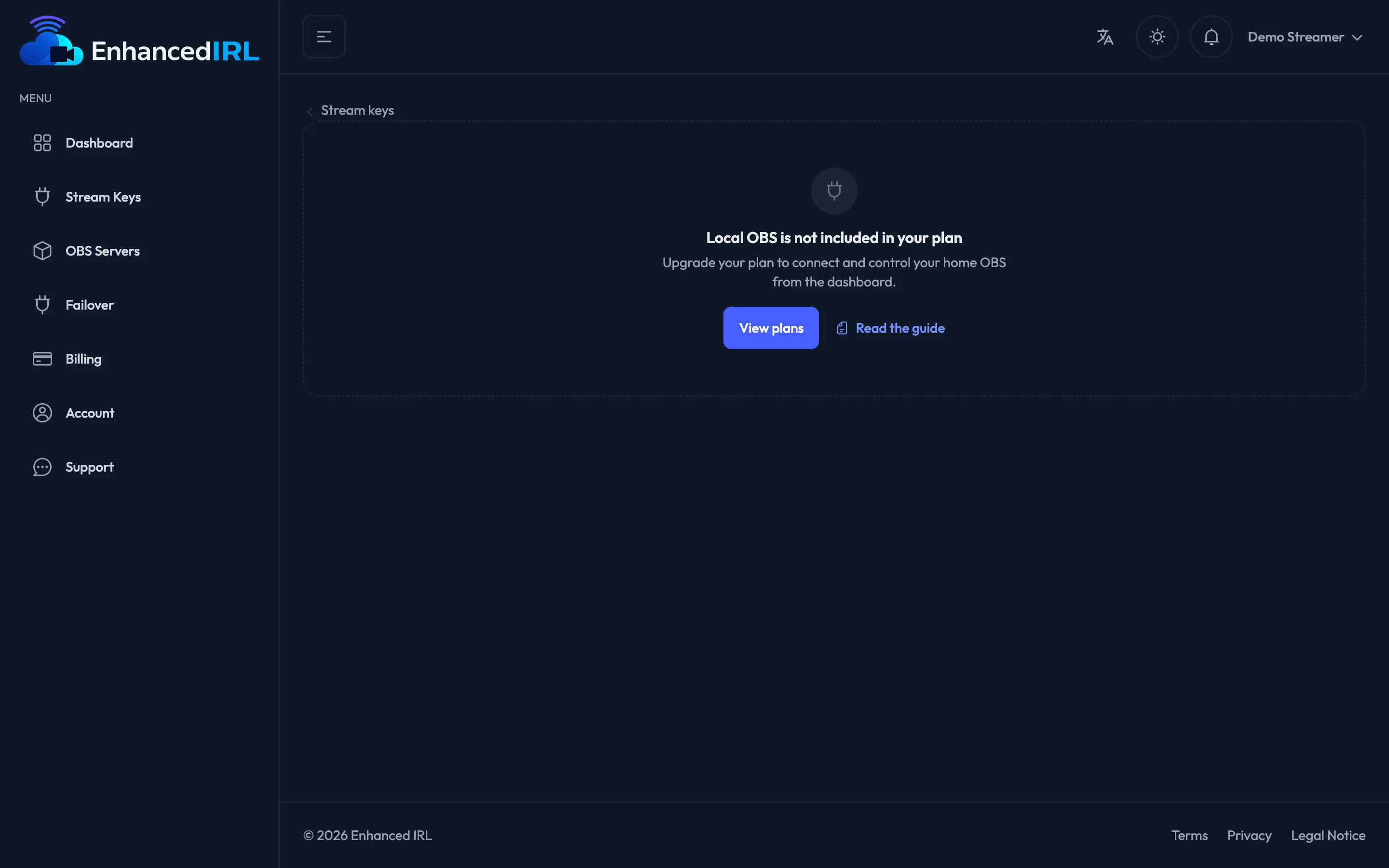
If you haven’t connected it yet, start with Connect your OBS to the dashboard. With no dock open, the tab only says Connect your OBS first.
What you can do
Section titled “What you can do”Switch scenes. Under Scenes you get the list exactly as it is in your OBS. One tap and that scene goes on air. The one that’s live is marked; up top, Current scene always tells you where you are.
Work with Studio Mode. The Studio Mode ON / Studio Mode OFF button turns on the two-window mode. With it on, a tap on a scene sends it to Preview, and Transition pushes it to Program. It’s the safe way to prepare a scene without it being seen.
Start and stop the stream. Start stream and Stop stream, with a confirmation before anything runs so a stray tap doesn’t get you. While you’re streaming, the header shows LIVE with the duration.
Touch the audio. Audio Mixer shows your OBS audio sources: you can raise and lower each one and mute them. Good for killing the mic without taking your phone out of your pocket… well, without leaving the app.
What information you get
Section titled “What information you get”On the right (or below, on a phone) you have three cards:
| Card | What it tells you |
|---|---|
| Connection | OBS WebSocket: Connected, Connecting… or Disconnected · Source: Local OBS · Reconnect button when it drops |
| Live | Only while you’re streaming: Duration, Bitrate and Dropped frames |
| System | CPU, FPS and Render time of your machine |
Dropped frames and Bitrate are the two numbers you look at when something’s wrong: if the bitrate goes down and dropped frames go up, the problem is your upload, not the dashboard.
CPU, FPS and Render time are about the PC that’s encoding. If render time shoots up and FPS falls, your machine can’t keep up with the scene you’ve got on.
If the connection drops
Section titled “If the connection drops”The Connection card switches to Disconnected and Reconnect appears. Before you touch anything, check the obvious: that the PC hasn’t gone to sleep and that the dock is still open inside OBS. The dock retries on its own (you’ll see Reconectando… with a countdown), so a lot of the time it fixes itself.
If when you come back the dashboard says Connect your OBS first, the dock is gone: open it again in OBS.
From another device or with your moderator
Section titled “From another device or with your moderator”If you want someone else to touch these same controls without handing them your account, use the control widget: a link that opens this very screen without signing in. It gives full control, so read that page before you share it.
Next step
Section titled “Next step”- Control widget — handing the remote to your moderator.
- Automatic scene switching on your OBS — so it drops to the low-bitrate scene without you having to watch.
- Unstable bitrate — if the number in the dashboard keeps going up and down.