

Going out to your platform
By the end, when you hit Start stream in the dashboard, your Cloud OBS will go live on the channel you picked for it.
You need: a plan with Cloud OBS · your platform’s stream key · 5 minutes
Two different keys, don’t mix them up
Section titled “Two different keys, don’t mix them up”It’s the number one mistake on day one.
| What it is | Where it comes from | Where you paste it | |
|---|---|---|---|
| Stream key | The input: this is how the feed reaches you from your phone or your encoder | From the dashboard, under Stream Keys | Into Moblin, BELABOX, Larix, IRL Pro… |
| Your platform’s stream key | The output: this is how your stream goes out to Twitch, Kick or YouTube | From your platform’s creator dashboard | Into Account → Streaming channels |
If you paste your platform’s key into the encoder you won’t connect, and if you paste your stream key as the output, your platform will reject it. Careful with the names: your platform calls its own key a “stream key” too. On this site, a plain stream key is always your Enhanced IRL one (the one you copy from Stream Keys); the one from Twitch, Kick or YouTube is always your platform’s stream key, and that’s also what the field where you paste it here is called.
- Open your platform’s creator dashboard and copy two things: the RTMP URL (something like
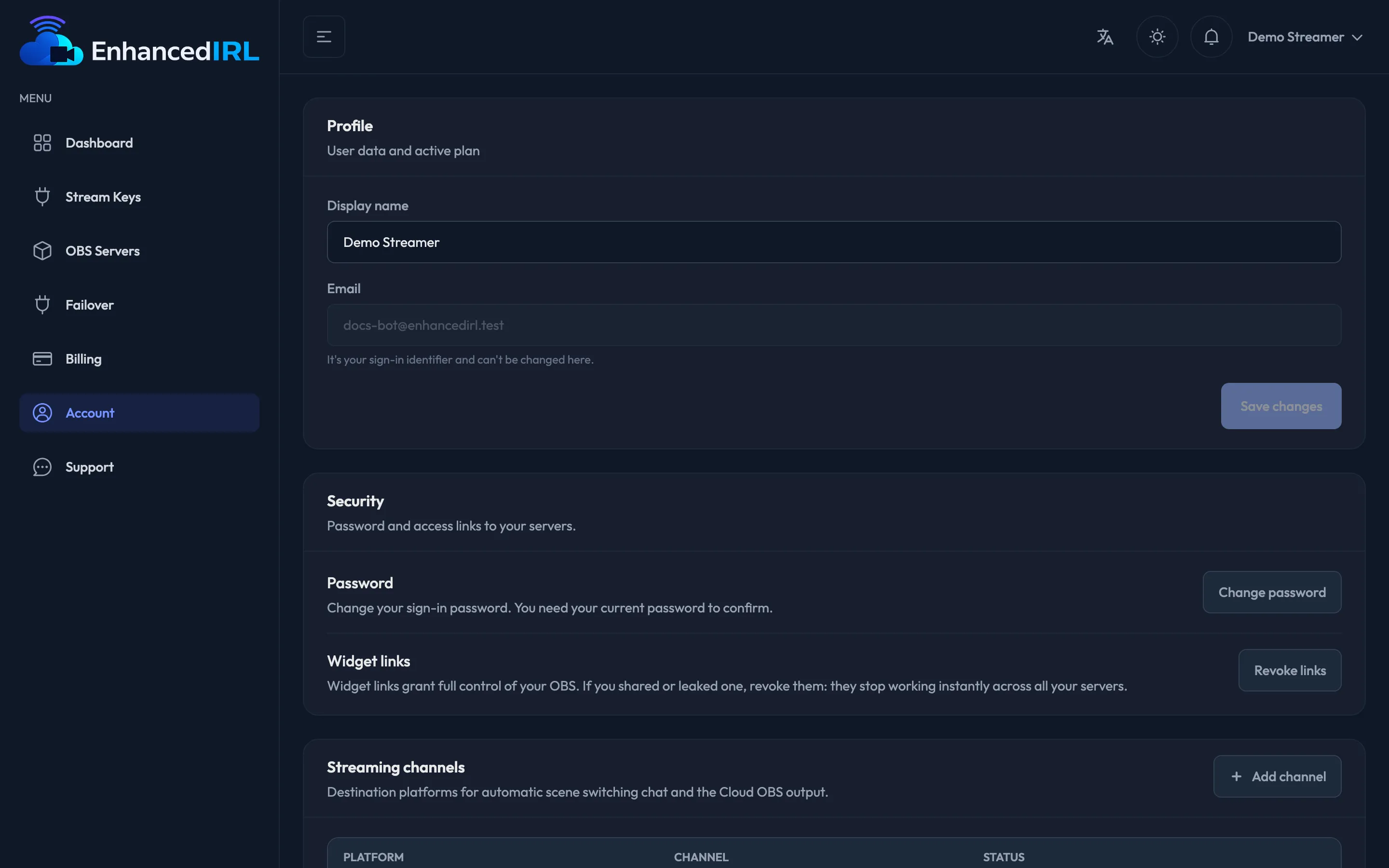
rtmp://live.twitch.tv/app) and your stream key from that platform. - In the Enhanced IRL dashboard, go to Account → Streaming channels and hit Add channel.
- Choose the Platform: Twitch, Kick, YouTube or Other.
- Write the Channel name (your username on that platform). The Display name (optional) is optional, just so you recognise it in the list.
- Paste the RTMP server (optional) and, in the Platform stream key (optional) field, your platform’s stream key. With Twitch or YouTube you can leave the server empty: we use their main server. With Kick or Other, paste the URL from their dashboard: they don’t have a fixed one.
- Leave Channel active switched on and hit Create channel.
- Go back to your server and open the OBS control tab. In the Output card, pick that channel and save.
- Hit Start stream.
Changing the channel of a server you already have
Section titled “Changing the channel of a server you already have”The output channel is picked in the Output card of the OBS control tab, and you can change it as often as you like. It’s saved right away: no need to turn the server off, restart it or regenerate it.
Editing the ingest URL or the platform stream key of a channel that’s already in use also reaches the server as soon as you save.
The output quality is yours to set too
Section titled “The output quality is yours to set too”On that same tab you have the server’s output bitrate, resolution and FPS, up to the cap your plan gives you:
| Plan | Output | Resolution and FPS |
|---|---|---|
| OBS Basic | 4,000 kbps | 720p 60 fps |
| OBS Standard | 5,000 kbps | 1080p 30 fps |
| OBS Pro | 8,000 kbps | 1080p 60 fps |
- The bitrate and the channel can be touched even while you’re broadcasting: they take over on the next stream.
- The resolution and the FPS can’t: OBS won’t change them with the broadcast running. Stop the stream, change them and start again.
Landscape or portrait
Section titled “Landscape or portrait”Orientation is where you pick the shape of your broadcast:
- Landscape (16:9) — the usual one for Twitch, Kick or YouTube.
- Portrait (9:16) — for TikTok, Shorts or Reels. Your plan gives you the same pixels, turned around: 1080p becomes 1080×1920.
Changing it restarts your server (under a minute) to re-fit your scenes to the new size, and it can’t be changed while you’re broadcasting either. Anything you moved by hand inside OBS stays as you left it; the rest is re-fitted for you.
If you broadcast to TikTok, your TikTok stream key comes from their own creator dashboard and they change it every time you go live: you’ll have to update it in Account → Streaming channels before you start.
All of it stays saved. Restarting the server, or turning it off and back on, doesn’t take you back to the old values.
See Plans and pricing for the full table.
One destination, not several
Section titled “One destination, not several”Not working?
Section titled “Not working?”- You hit Start stream and nothing shows up on your channel: almost always the ingest URL or the key is missing under Account → Streaming channels. Go over them: stray spaces when pasting break the key.
- The server is left with no output channel: that happens if you delete or deactivate the channel it was using. Pick it another one under OBS control → Output.
- Your platform rejects you: you pasted your Enhanced IRL stream key instead of your platform’s stream key.
- You’re broadcasting but it stutters: see Unstable bitrate.
Next step
Section titled “Next step”- Connect your Twitch, YouTube or Kick account — so you never touch the key again.
- The web control panel — where you go live and come back off.
- Scenes and overlays — get ready what your audience will see.