

The encoder's connections
With SRTLA, the encoder spreads the stream across all its internet connections at once. The more connections, on different carriers, the better your stream holds when one drops. How to point the stream at your stream key: Broadcasting with the EnhancedIRL Encoder.
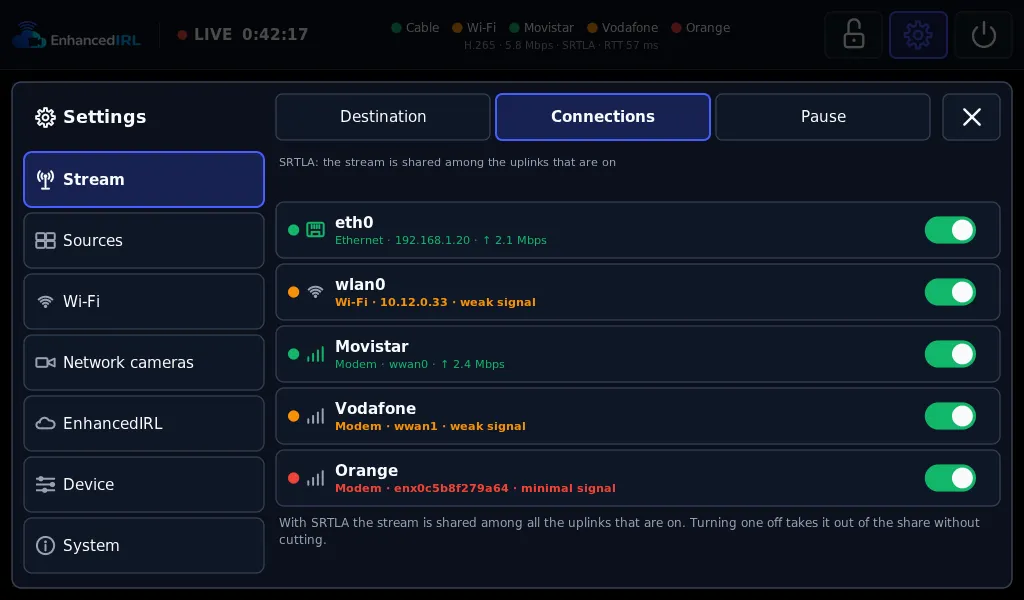
The connections it adds up
Section titled “The connections it adds up”| Connection | How to add it |
|---|---|
| Network cable | Plug it in. The steadiest one |
| A venue’s Wi-Fi or a phone’s hotspot | Join a Wi-Fi network (below) |
| USB 4G/5G modem | Plug it in with its SIM. Several modems need a USB hub with its own power supply |
| iPhone by cable | With Personal Hotspot on (further down) |
You see them all in Settings › Stream › Connections (on the web page, the Connections card). Tapping the dots area in the screen’s header takes you straight there.
The two Wi-Fis
Section titled “The two Wi-Fis”The encoder has two independent Wi-Fi switches, in Settings › Wireless › Wi-Fi. It needs the Wi-Fi card on the board.
- Join a Wi-Fi network (on the web page, Connect to a Wi-Fi network): the hotel’s, the bar’s or a phone’s hotspot, as one more connection for bonding. Tap Networks ›, pick the network and type the password. WEP, WPA3 and Enterprise networks aren’t supported.
- Create my Wi-Fi: the encoder’s own Wi-Fi. It gives no internet: it’s for your network cameras to join, and for opening the encoder’s web page from your phone without another network. Below it are its QR code, its name (Rename) and its password, the Channel (2.4 GHz) and New password. Changing the name or the password disconnects everything joined to it.
You can have both on at once. If the venue’s Wi-Fi is on 5 GHz, the screen warns that Wi-Fi will be slower.
An iPhone by cable
Section titled “An iPhone by cable”- Turn on Personal Hotspot on the iPhone.
- Plug it into the encoder’s USB and unlock it.
- The first time, answer that you trust this computer and enter the iPhone’s passcode.
It shows up as one more USB connection. After that it comes back by itself, without asking. It needs encoder version 0.11.1 or later: see Updating the encoder.
USB modems
Section titled “USB modems”Each modem has its own page: in Connections, tap the › on its row. There you see its signal, the SIM and the network, and you can change:
- Network: Automatic, 4G only or 4G + 5G.
- APN: left empty, it’s picked by itself from the carrier.
- Roaming: it comes off. Turn it on if you use the SIM outside its country.
- Name: up to 12 characters; empty, the carrier’s.
- Unlock the SIM, if it asks for its PIN (4 to 8 digits), and Restart modem.
Two identical modems can give themselves the same IP: the row says Repeated IP and only one is used. Press Separate the networks on its page.
Each connection’s dot
Section titled “Each connection’s dot”| Colour | What it means |
|---|---|
| Green | All good |
| Amber | Weak signal, or a struggling link |
| Red | Minimal signal, no internet, or disconnected |
| Grey | You took it out of the share yourself |
Next to the dot, the row gives the reason: no internet, weak signal, the SIM asks for its PIN, roaming is off…
No internet. The encoder keeps checking that each connection really reaches the internet. A hotel Wi-Fi with a login page, or a SIM with no credit, gives a connection but no internet: after a minute or so it’s marked No internet and stops carrying the stream, without cutting your live. It goes back into the share by itself when it recovers.
Taking a connection out of the share
Section titled “Taking a connection out of the share”Tap its row (on the web page, uncheck it) and it goes to Out of the share: it stops carrying the stream without cutting your live. Handy, for example, to save your phone’s data when you have cable. If it’s the last one left while you stream over SRTLA, the screen asks for a second tap, because the stream would cut.
Next step
Section titled “Next step”- Broadcasting with the EnhancedIRL Encoder: check that bonding adds up.
- Problems with the encoder: a connection in red or with no internet.