

The encoder's mixer
The encoder is the mixer: what goes out is always the program you put together. You run it from the touch screen or from the encoder’s web page, which are two views of the same thing: what you touch on one shows up on the other at once.
Putting a source on air
Section titled “Putting a source on air”- Tap a thumbnail: that source goes to the program.
- Transition: Cut switches instantly; Fade does a short fade.
- On the web page, in the Sources card, tap the source you want.
Sources that aren’t 16:9 (a 4:3 webcam, a phone held upright) are fitted in the middle, with black bars and without cropping.
Layout
Section titled “Layout”The Layout buttons are Full, PiP, Side by side and Pause.
- PiP (picture-in-picture): the source on air fills the program and another one goes in a small window. Hold a thumbnail to send it to the window. With PiP on, a tap on its button changes the corner and a long press, the size (1/4 or 1/3 of the width). Tap the program to swap the two. On the web page: Window (the four corners), Width (25 % or 33 %) and Swap.
- Side by side: the source on air and the second one, each in its half.
- Pause: covers the program with a full-screen card and your text. What’s underneath doesn’t change: take it off and everything is back as it was. On the web page, Pause and End the pause.
The card’s text is set in Settings › Stream › Pause: Card text (up to 60 characters) and Mute the audio during the pause. The screen’s keyboard has no accents: to use them, type the text on the web page, in Pause settings.
Going live and stopping
Section titled “Going live and stopping”- Hold GO LIVE for a second, until the bar fills up.
- While it connects it says CONNECTING…; once live, ● LIVE with how long you’ve been on.
- To stop, hold it again for a second (hold to stop).
On the web page they’re Go live and Stop streaming, which asks you to confirm. When you stop, the preview keeps running. Before going live you need a destination: Broadcasting with the EnhancedIRL Encoder.
Locking the screen
Section titled “Locking the screen”Tap the padlock at the top right. Locked, the screen goes dark except for the program and ignores every touch. To unlock it, hold the padlock, or press Unlock on the web page.
The audio
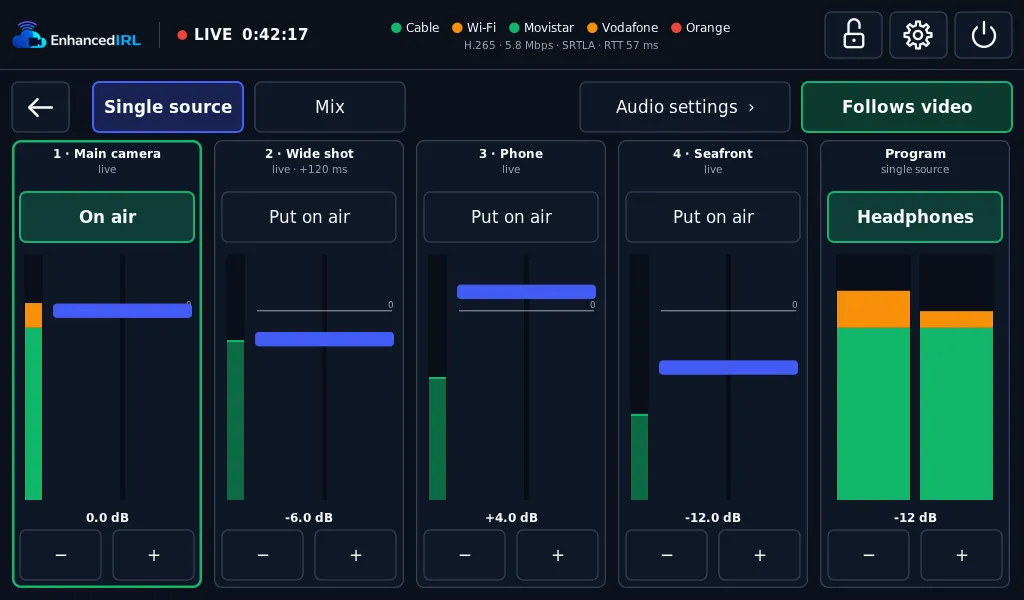
Section titled “The audio”Audio is separate from video. On the screen, Audio mixer › opens the audio view; the ← arrow takes you back to the video. At the top you pick how it plays:
- Single source: one input plays. Each strip has Put on air, and the one playing says On air. With Follows video on, putting a camera on air plays its audio.
- Mix: the checked inputs play at the same time (In the mix / Out).
Each input has its own gain, from −40 to +12 dB: with − and + in 2 dB steps, or by tapping on its fader. It works with a single source and with the mix.
Audio settings › has two more things:
- Delay, from 0 to 500 ms per input: if the sound is ahead of the picture, delay it here.
- Each camera’s audio: the one that plays with Follows video when that camera goes on air. For example, the board’s HDMI with a USB microphone. Or No audio of its own: whatever was playing keeps playing.
Audio inputs are the board’s HDMI (with its audio wiring, see What you need), USB capture cards and cameras with sound, USB microphones and interfaces, and the network camera.
Headphones
Section titled “Headphones”Plug headphones into the screen’s jack: you hear the program, in step with the picture. In the audio view, on the Program strip, tap Headphones to turn them on and set the volume with − and +. On the web page it’s Screen headphones. If it says screen without audio underneath, your screen doesn’t take audio over HDMI.
Restarting or powering off
Section titled “Restarting or powering off”The power button at the top right opens Restart and Power off. Hold the one you want for 2 seconds to confirm.
Next step
Section titled “Next step”- The encoder’s sources: slots, aliases and network cameras.
- The encoder’s connections: adding up cable, Wi-Fi and modems.