

Getting started with failover
By the end you’ll have a failover channel running: your signal passes through to your platform as-is and, when it drops, your offline screen covers the gap until you’re back.
You need: a Failover plan · your encoder · your platform’s URL and stream key · 10 minutes
Where it sits
Section titled “Where it sits”Failover goes in the middle: your encoder no longer broadcasts to your platform, it broadcasts to the failover channel, and it’s the channel that talks to Twitch (or to whatever RTMP destination you give it). While your signal is arriving, it lets it through. When it stops arriving, it splices in your offline screen without closing the broadcast, and goes back to your signal the moment you reconnect.
- Subscribe to a failover plan from Billing → Get new product, the Failover category. There are three, and the only thing that changes is the bitrate cap: Plans and pricing.
- Set up the destination in Account → Streaming channels → Add channel, with your platform’s RTMP server (optional) and Platform stream key (optional). Without those two the channel has nothing to broadcast to: Destinations.
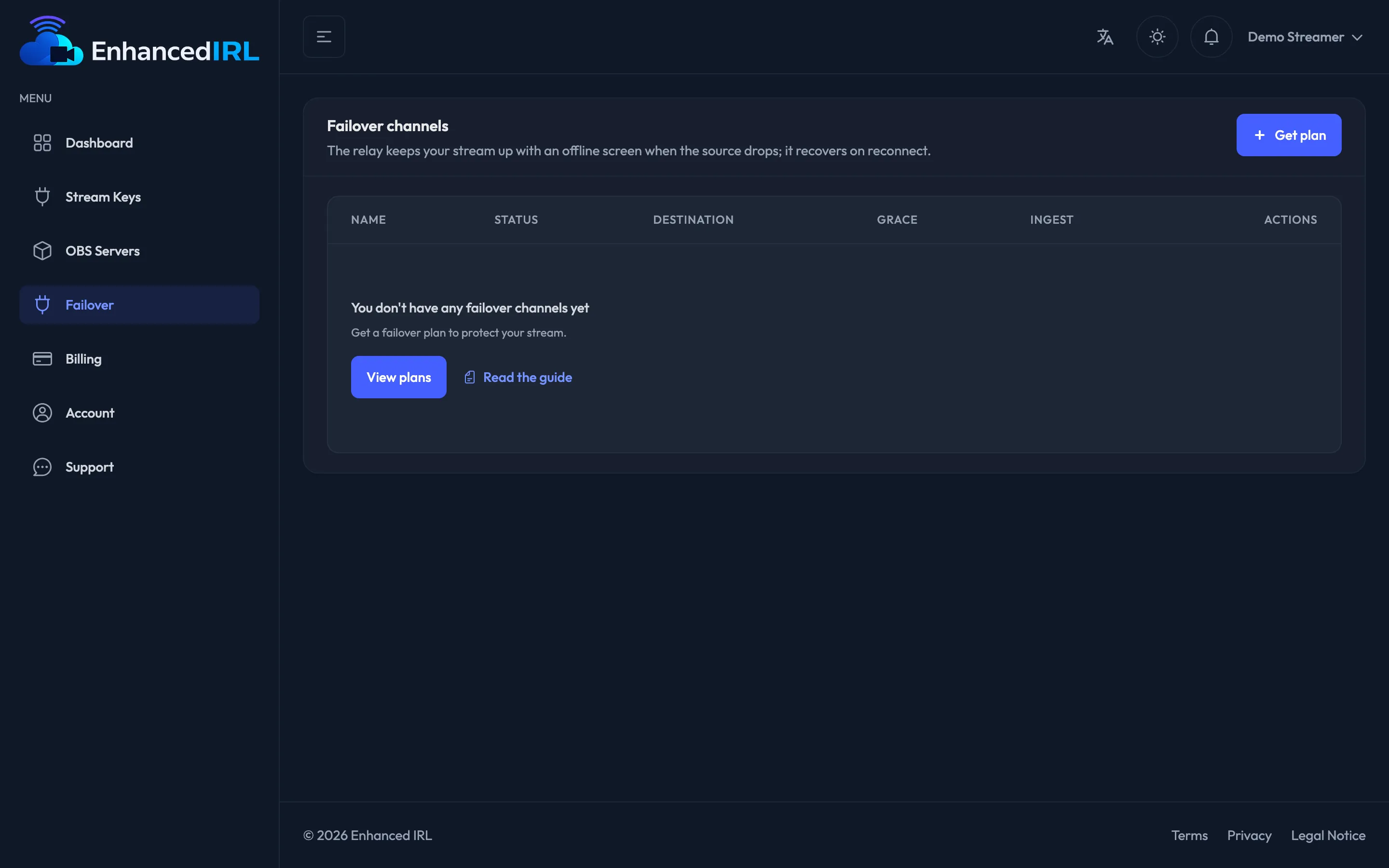
- Open Failover in the side menu. You’ll see Create your failover channel: type a name (Main IRL, for example) and hit Create channel.
- Wait for the status to go from Setting up to Idle. Refresh the page if it takes a while.
- In the Destination column, pick the streaming channel from step 2.
- In the Grace column, choose how long your stream should hold on while you’re down: 2 min, 5 min or 10 min: Grace window.
- Hit Offline screen and upload the image or video that plays while there’s no signal: Offline screen.
- Copy the URL in the Ingest column with the copy button and paste it into your encoder as the publish URL. Next to the channel name you have its protocol and its bitrate cap (for example, SRT · 5 Mbps): don’t go above that.
- Broadcast. As soon as your signal arrives the channel goes to Live and your platform goes live.
Not working?
Section titled “Not working?”| What you see | What it means | What to do |
|---|---|---|
| You don’t have any failover channels yet and the View plans button | You have no active failover subscription | Subscribe to a failover plan from Billing |
| You’ve reached the … backup channels included in your plan. Delete one or upgrade your plan. | It’s one channel per subscription | Use the one you already have, or subscribe to another failover plan |
| The channel … is missing its stream URL or its platform stream key. Fill them in and try again. | The destination is half set up | Go to Account → Streaming channels, edit it and fill in both fields |
| The channel stays on Idle even though you’re broadcasting | Your signal isn’t reaching the channel | Check that you pasted the URL from the Ingest column (not your platform’s) and that you’re not going over the bitrate cap |
Next step
Section titled “Next step”- Destinations: where you get your platform’s URL and key.
- Offline screen: what to upload and what to avoid.
- Grace window: what happens if you take a while to come back.