

Your first stream
By the end you’ll be broadcasting for real: your signal reaching the dashboard and, if you have Cloud OBS, the stream published on your channel.
You need: a plan with a stream key · your phone or encoder · 10 minutes
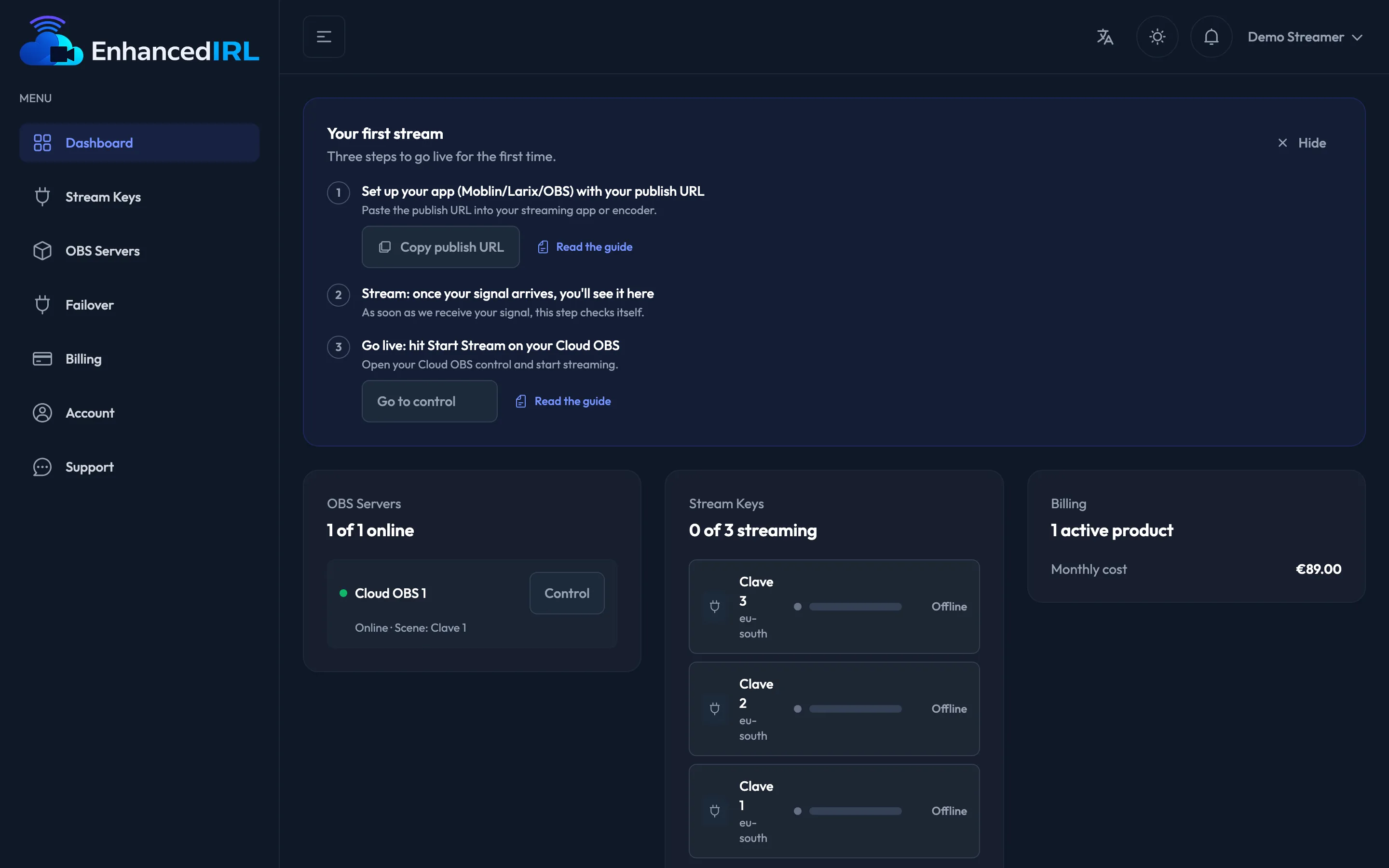
- Sign in to the dashboard and open Stream Keys. That’s where your key is, with its Protocol, its Region and its Status. If you have Cloud OBS and several keys (OBS Standard or OBS Pro), use the one tagged Cloud OBS key: it’s the one shown in your server’s main scene. The Extra input ones are for another camera (Getting started with Cloud OBS).
- Pick the Protocol from the dropdown on the row: RTMP, SRT or SRTLA. If you broadcast from your phone on mobile data, SRT; if you’re bonding several connections, SRTLA; RTMP if your encoder speaks nothing else. See Choosing a protocol.
- Pick the Region closest to where you’re going to broadcast from.
- Hit Publish. The whole publish URL goes to your clipboard, with your key inside it. Don’t type it out by hand.
- Paste it into your app or encoder and save. Each one has its own spot: Moblin · BELABOX · Larix Broadcaster · IRL Pro · your OBS. On your phone there is a shortcut: hit QR code on the key (it is also in step 1 of the dashboard checklist) and scan it: in Moblin the stream is created for you, publish URL already inside.
- Set your encoder’s bitrate below your plan’s cap (Caps and states).
- Hit go live. Within seconds the key’s Status flips to Streaming and, on the dashboard, Live signal starts showing your Current bitrate.
- Without Cloud OBS you’re done: your signal is coming in and your own OBS can pick it up with the playback URL.
- With Cloud OBS: go to OBS Servers and open yours. If it’s Stopped, hit Turn on and wait; it takes a few minutes to be ready.
- On the Control tab, check the scene on air is your key’s (
<key>), not<key> Offline, and hit Start stream. You’re live on your channel.
Not working?
Section titled “Not working?”The key stays on “No signal” (or the dashboard says No signal yet). Your encoder isn’t getting through. Check that you pasted the URL whole and that it’s the one for the region and the protocol the key has now: changing either one changes the publish URL. Copy it again with Publish and paste it over. More causes in My feed isn’t arriving.
You’re broadcasting, but your channel shows the no-signal screen. With several keys, you’re most likely broadcasting to an Extra input: the dashboard shows it with signal, but your Cloud OBS only puts the main scene on air, and that one is fed by the Cloud OBS key. Copy the publish URL again from that key (or from the dashboard, which already offers it by default) and paste it into your app. While it lasts, your server’s page warns you with Your audience is seeing the no-signal screen. If you don’t use a camera because you stream your own videos, the cause is different: with no feed coming in, automatic scene switching jumps to that screen. Switch it off as explained in Several videos in a loop.
Moblin won’t connect.
Two classics: the SRTLA URL starts with srtla://, not with srt://, and the Big packets
option has to be off. With Big packets on the connection never gets established and the
error you see looks like an authentication problem, so it throws you off. See
Broadcasting with Moblin.
“Your Cloud OBS is off”. That’s normal, and you didn’t turn it off: the server turns off on its own after a while without broadcasting, so it doesn’t burn resources. Hit Turn on and give it a few minutes; you’ll see the Turning on your server notice. It never turns off while you’re broadcasting or while you have its page open and in view, and before it does it warns you through the dashboard bell: press Keep it on to cancel the shutdown. All of it in It turns off on its own. If it ends up on Deployment error, see Cloud OBS won’t start.
Next step
Section titled “Next step”- Broadcasting to your platform — which channel your Cloud OBS goes out to.
- Automatic scene switching — so it jumps to your BRB scene on its own when the bitrate collapses.